Step-by-Step Guide

Welcome, we understand that Webflow can be a bit confusing, this guide will help you get started. So grab a pen and paper and let's get started!

Home page - Custome code


Where to find it:
Home Page Settings > Custom Code > Before </body> tag

What it does:

This script powers the seamless, never-ending project loop on the homepage. It automatically duplicates your CMS projects and locks the browser's native scroll, replacing it with a custom mathematical scroll that feels incredibly heavy, smooth, and premium.

Note: For the best user experience, this infinite loop is intentionally disabled on mobile devices and tablets (screens under 991px), reverting to a native touch scroll.

How to customize it:

Scroll down in the code until you see the 🎛️ SMOOTH SCROLL SETTINGS section. You only need to touch these two numbers:

1. Scroll Speed (let scrollSpeed = 0.0004;)This controls how far the screen moves with one click of your mouse wheel.

  • Make it faster: Increase the number (e.g., 0.0008 or 0.001).
  • Make it slower: Decrease the number (e.g., 0.0002).

2. Smoothness (let smoothness = 0.028;)This controls the "glide" or friction of the scroll after you stop moving your mouse wheel.

  • 0.1 = Snappy and abrupt (stops instantly).
  • 0.04 to 0.02 = Buttery smooth and heavy (Recommended).
  • 0.005 = Feels like sliding on ice (takes a long time to stop).

⚠️ CRITICAL RULE: Never add negative margins to the .collection-item or .collection-list-wrapper in Webflow. If you want the images closer together, use the Flexbox "Gap" property on the .collection-list. Negative margins will break the infinite math and cause a visual jump!
2. All Other Pages: Lenis Smooth Scroll

Where to find it: Project Settings > Custom Code > Before </body> tag (or individual Page Settings for pages other than Home).

What it does:

For the rest of the website (About, Projects, Blog, Contact), we use Lenis, a state-of-the-art smooth scroll library. It removes the clunky, jagged scrolling of standard web browsers and replaces it with a fluid, momentum-based glide.

How to customize it:

Look for the Initialize Lenis section in the code. You can adjust the following values to change how heavy or fast the page feels:

1. Duration (duration: 1.2,)This controls how long the scrolling momentum lasts.

  • 0.8 = Faster, lighter page feel.
  • 1.2 = Default Daylight premium weight.
  • 2.0 = Very heavy, cinematic, slow glide.

2. Touch Multiplier (touchMultiplier: 2,)This speeds up how fast the page moves when users swipe on trackpads or mobile devices. You can increase this to 3 if the site feels too slow on laptops.

⚠️ Important Settings to Leave Alone:

  • smoothTouch: false — Keep this false! Forcing smooth scroll on mobile touch screens creates a terrible, laggy experience. Native iOS/Android scrolling is always better for phones.
  • Keep your main page wrappers padded with at least 1px of bottom margin/padding to ensure Lenis can calculate the absolute bottom of the page perfectly.

3. Managing Your Content (CMS)

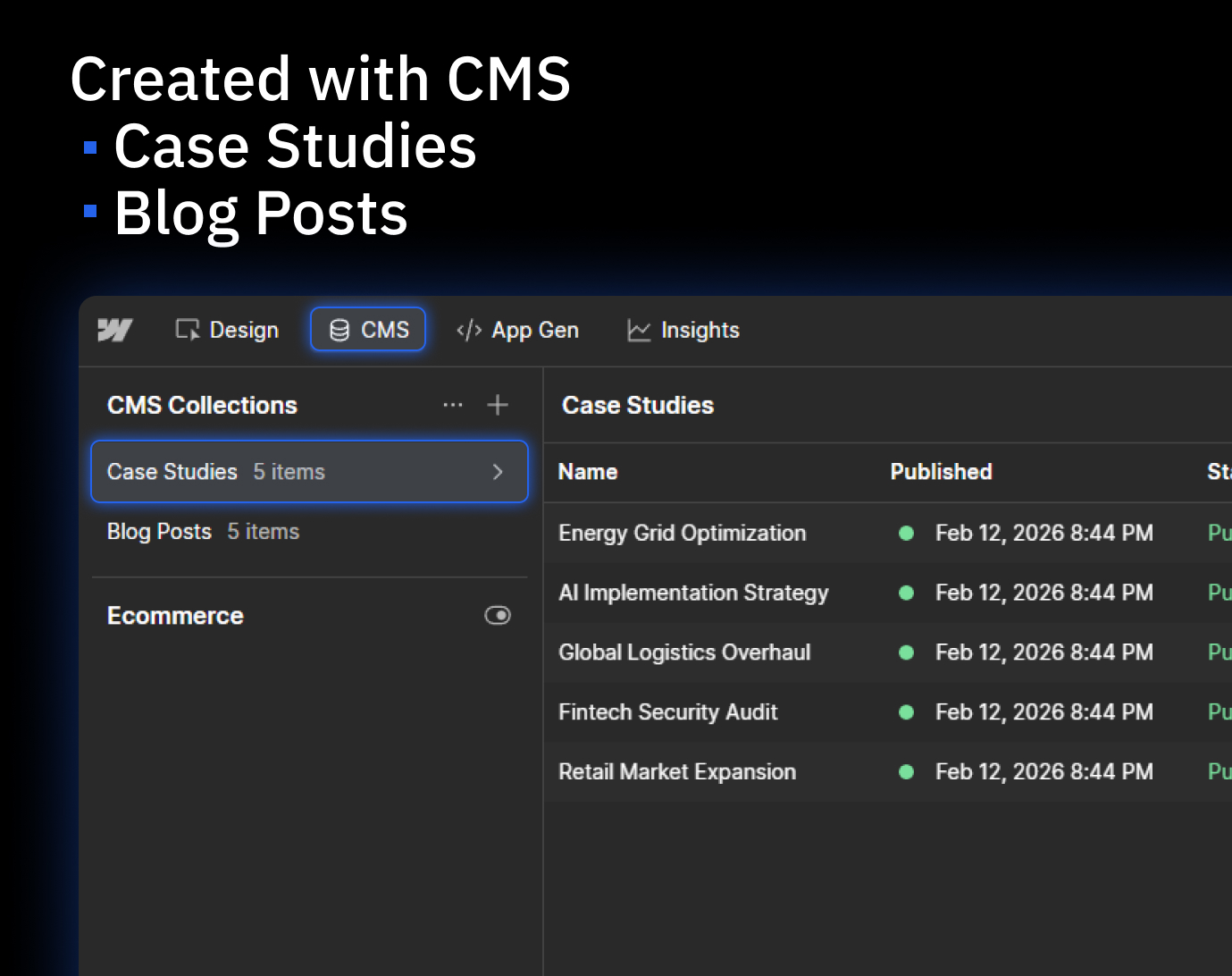
The CMS (Content Management System) is where you'll manage your dynamic content like Case Studies or Blogs.

  • Access the CMS: Click the CMS icon (stacked coins) in the top-left toolbar.
  • Choose a Collection: Navigate to the Case Studies or Blogs collection.
  • Edit or Add: Click on an existing item to change the text and images, or click the + New button to create a brand-new post from scratch.

4. SEO & Page Settings

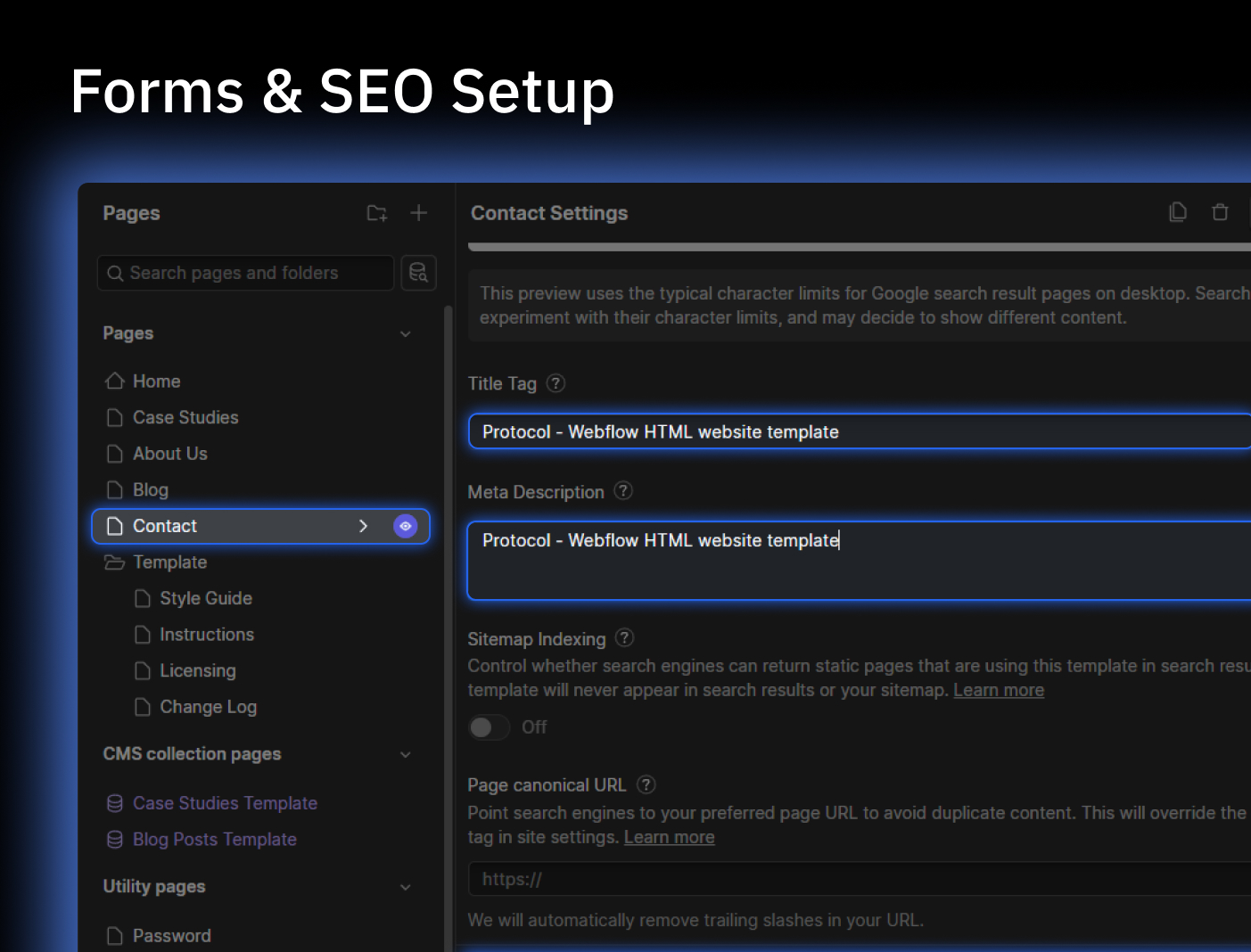
To ensure your site looks great on Google and social media, you need to update your metadata.

  • Open Pages: Open the Pages list on the left-hand side.
  • Page Settings: Hover over the page you want to edit and click the Gear Icon next to the page name.
  • Update Info: Scroll down to the SEO Settings section to update your Title Tag and Meta Description.
  • Social Sharing: Keep scrolling to the Open Graph section to upload the image people see when you share your link on LinkedIn or X (Twitter).

💡 General Tips for Success

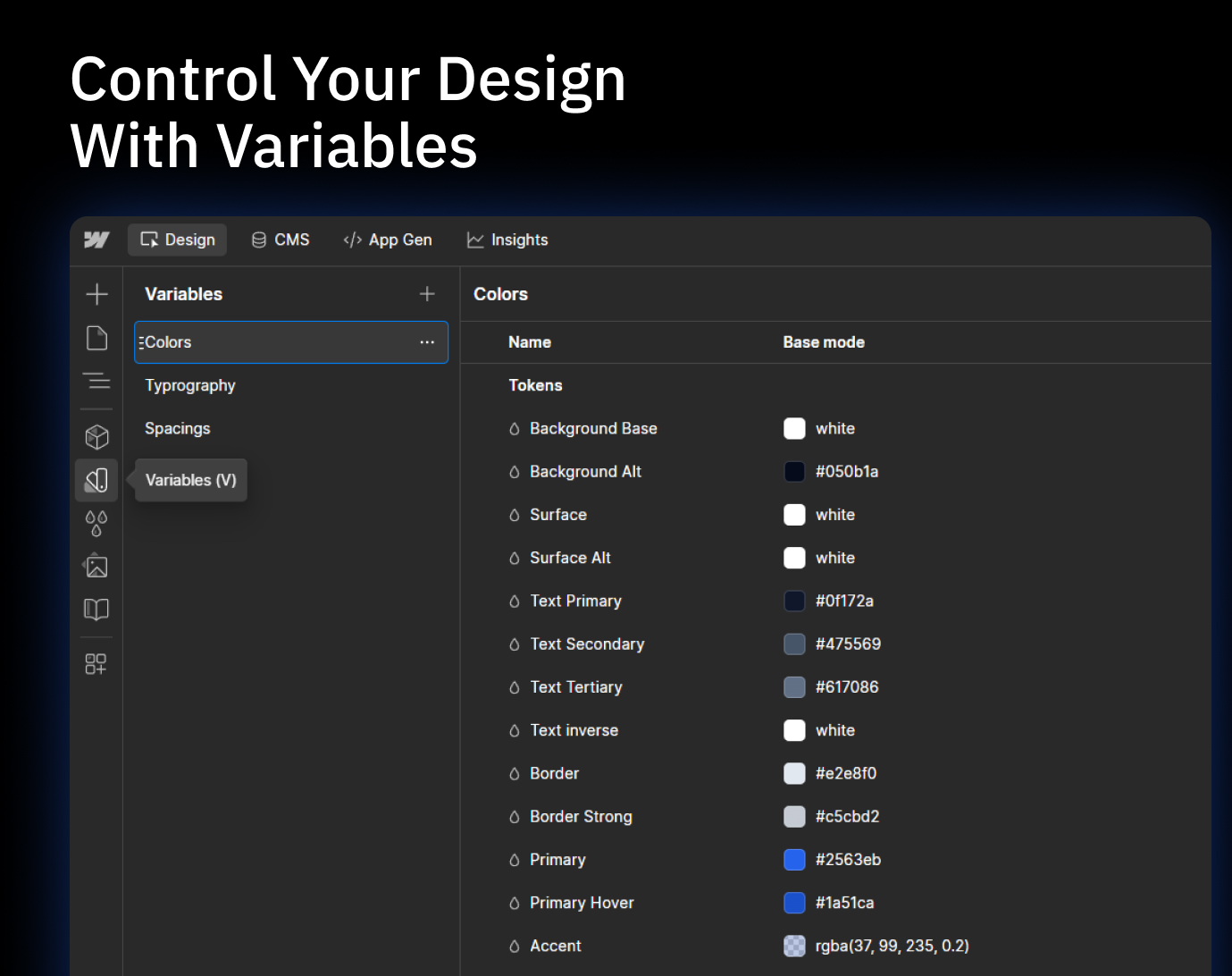
  • Using Variables: As shown in the thumbnail, use the Variables Tab (V) to change global colors and fonts instantly. This is the fastest way to rebrand the entire template.
  • The "Undo" Safety Net: If you make a mistake, don't panic! Use Cmd+Z (Mac) or Ctrl+Z (Windows) to undo. Webflow also saves "Backups" in your site settings if you need to revert to an older version.
  • Publishing: Changes made in the Designer are not live until you hit the blue Publish button in the top right. We recommend publishing to your .webflow.io staging domain first to test everything.
  • Clean Up: Before going live, go to the Style Manager (G) and click Clean Up to remove any unused CSS classes, keeping your site lean and fast.
  • Info Icon
    Figma file or more help?

    If you have any questions or need additional assistance, please do not hesitate to reach out. We are here to help and support you every step of the way. And for those who would like to take a closer look at the design, we are also happy to provide a Figma file. Simply send us a request and we will be happy to share it with you. Thank you for choosing